
Merge Assistant
Overview
Merge Assistant for Jira helps teams identify and merge duplicate issues in a simple, safe, and intelligent way. It is seamlessly integrated into the Jira issue view, automating tedious copy and closure actions while keeping a full audit trail.
What's new
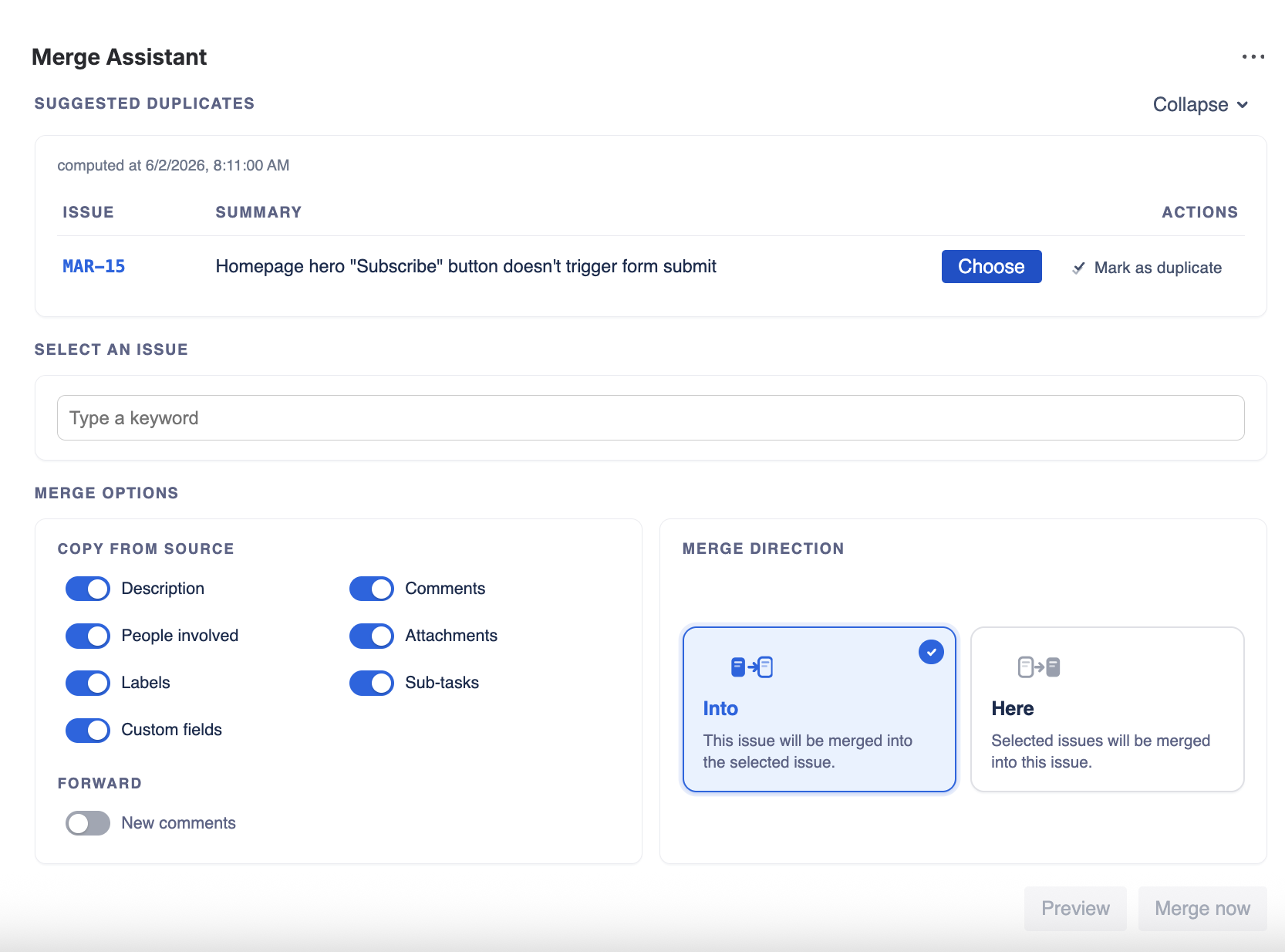
- Mark as duplicate — one-click. From the Suggested duplicates list, the new kebab menu (⋯) on each row offers a quick action that links the source as a duplicate and closes it — no data is copied. Ideal for support cases where the issue is clearly redundant.
- Merge options grouped by intent. The toggles are organised under two clear headings — Copy from source (everything brought over from the duplicate) and Forward (what survives long after the merge) — making the panel easy to scan.
- Visual direction tiles. The merge direction is now picked through two large tiles — Into and Here — with explicit explanations and a clear blue selection indicator, replacing the previous small radio toggle.
- Auto-recompute on mark/merge. After a mark-as-duplicate or a merge, the suggestions list is recomputed automatically so the closed source disappears from the panel right away.
- Permission-safe behaviours. Watcher and permission-sensitive actions degrade gracefully when the current user lacks the required project permission, never bypassing Jira permission checks.
Where to find the app
Merge Assistant is available directly inside the Jira issue view. It appears:
- Automatically, when a new issue is detected as a potential duplicate.
- Manually, through the side panel labeled Merge Assistant.
Duplicate suggestions
When a new issue is created or updated, Merge Assistant automatically analyzes its summary, description, labels and participants. If similar issues already exist, they are displayed as merge suggestions in the panel. From there, you can:
- Review suggested duplicates with their confidence score.
- Mark as duplicatedirectly from the row's kebab menu (⋯) to link and close the source in one click — no merge, no data copied. The list refreshes automatically once the action is processed.
- Choose a suggestion to load it as the merge target and configure the full options.
- Open the preview before confirming the merge.
Cross-project scan
By default, Merge Assistant looks for duplicates within the current project only. You can broaden the scan to other projects — useful when the same kind of issue is reported in several queues (e.g. a customer ticket in SUP that already exists as a bug report in BUG).
Configuration lives in a small toolbox next to the Suggested duplicates header. It is only visible to users with the Administer Projects permission on the current project — regular users never see the control and cannot change the scope.

Click the link to open the picker, then search and select the projects you want to include. The list is saved as you go — you can add or remove projects one by one. Up to 10 additional projects can be configured per project.
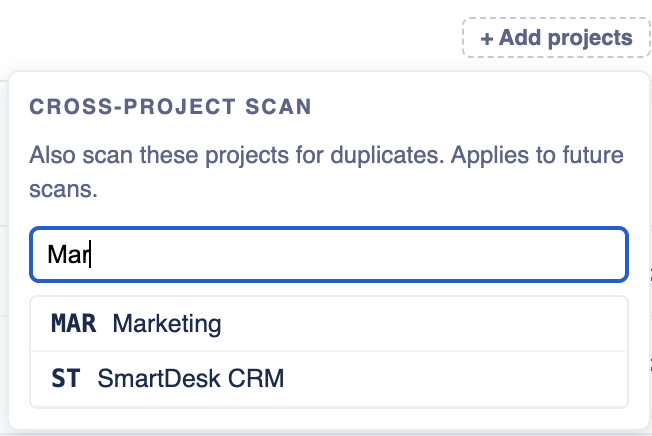

Changes apply to future scans — the trigger that runs when a new issue is created, and the recompute that runs after each merge. The currently-displayed suggestion list is not affected until one of these events fires.
End users continue to see only the duplicates they have permission to view: a viewer with access to SUP but not BUG will not see any suggestion coming from BUG, even if BUG is in the cross-project list. Permissions are enforced natively by Jira on every panel load.
Customer notification (JSM)
On Jira Service Management projects, a Notify customer toggle is available in the merge options. When enabled, a public comment is posted on the source request just before it is closed, so the requester knows their ticket has been folded into another one and where to follow up.

The notification text is fully editable per project. Click the small icon next to the toggle to open the editor: type your own message and use the {target}placeholder for the target issue key. Useful when your customers don't read English, or when your support team wants a specific tone.
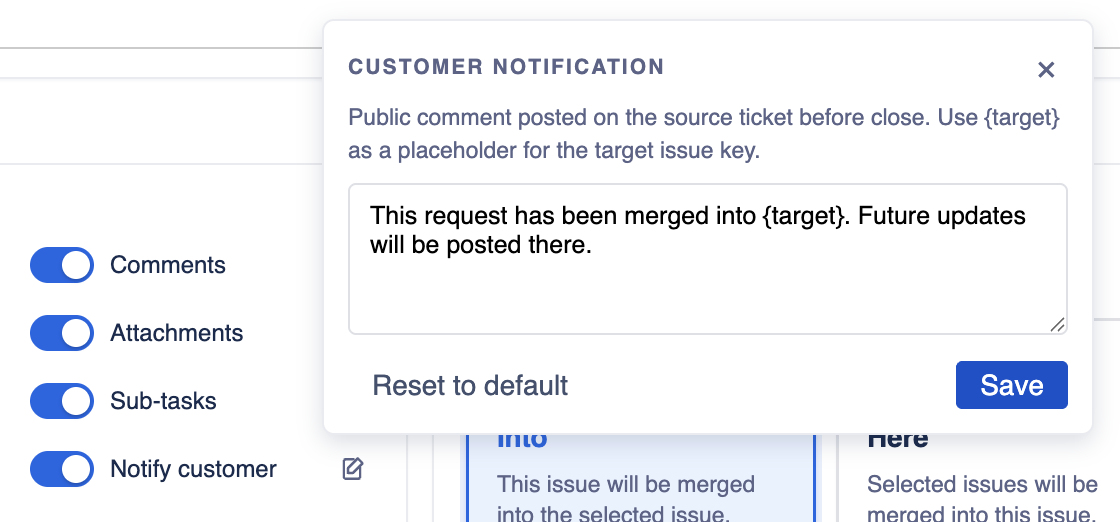
Only users with the Administer Projects permission can edit the template. Everyone else sees it read-only. The saved template is reused on every subsequent merge in that project until an admin changes it again.
Independently of this toggle, Merge Assistant always keeps its own bookkeeping and audit notes (for example +5 more comments not copied or Marked SRC-42 as duplicate) as internal comments on JSM tickets, so they never leak to the customer portal.
Manual merge
You can also launch a merge manually from any issue. Click Merge Assistant → Merge into… to open the panel.
Selecting issues
- You can select one or multiple issues to merge.
- When multiple issues are selected, only the option Merge here (merge into the current issue) is available.
Merge options
Before merging, you can decide which data to combine. Options are organised in two groups so the panel stays readable as it grows:
Copy from source
- Description — append the duplicate's description to the target.
- Comments — transfer comments (public and internal, preserving visibility on JSM).
- People involved — add the reporter, watchers and request participants from the duplicate.
- Attachments — copy or link attachments to the target issue.
- Labels — combine labels from both issues.
- Sub-tasks — clone the source's sub-tasks on the target, carrying their description, comments, attachments and custom fields.
- Custom fields — fill empty target fields from the source, union multi-value fields. Target values are never overwritten.
- Notify customer (visible only on Jira Service Management projects) — post a public comment on the source ticket before close so the requester knows where the conversation continues. Internal audit notes stay off the customer portal automatically.
Forward
- New comments — automatically forward any comment added later on the closed duplicate back to the target. Visibility (public / internal) is preserved.
Merge direction
Two directions are possible:
- → Merge into… — the current issue is merged into another one.
- ← Merge here — other selected issues are merged into the current one.
Preview step
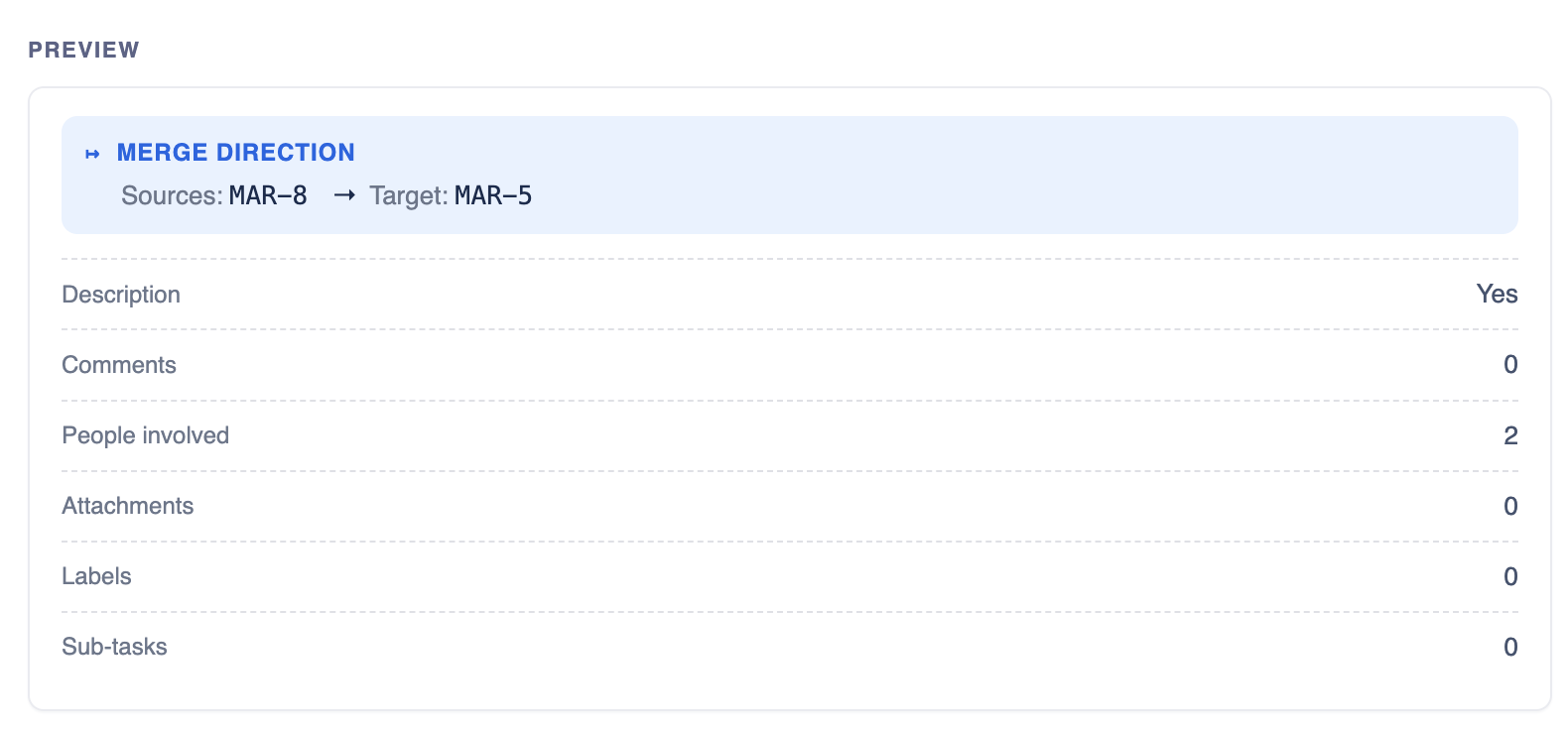
Before execution, Merge Assistant displays a preview screen summarising what will happen:
- fields and content to be merged,
- number of comments transferred,
- people added,
- subtasks or labels affected.
This helps you verify the merge before final confirmation.
Executing the merge
Once confirmed, Merge Assistant will:
- Copy all selected elements to the target issue.
- Move the duplicate issue to a Done status using your own workflow (any status in the Donecategory — there is no dedicated "Merged" status to create), and set the resolution to Duplicate when your workflow offers it.
- Add a relation link is merged into.
- Post an audit comment summarising the operation.
If your workflow can't close the source automatically — for example because the transition to a Done status requires a mandatory field or a validation — Merge Assistant still copies the data and links the issues, then tells you the source stayed open (with the exact reason Jira reported) so you can close it manually. This is common on Jira Service Management incident workflows. You can avoid it with the Duplicate close setting below.
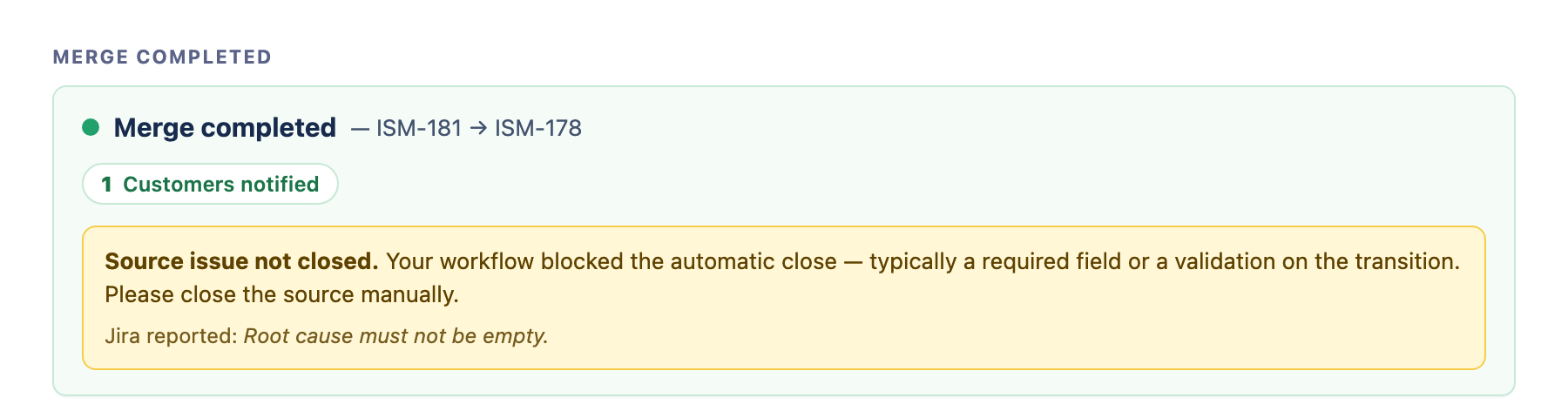
All changes remain visible in the Jira issue history for transparency and tracking.
Duplicate close status (admin)
By default, Merge Assistant walks your workflow to the first Done-category status it can reach and sets the resolution to Duplicatewhen the transition offers it. On strict workflows the closing transition sometimes requires a mandatory field the app can't fill (a custom field, an assignee, a validation screen), so the close is rejected and the source stays open.
To handle this, a project admin can pin an explicit close target. Open the Merge options section and click the gear icon next to the header, then choose:

- Close status — the status a merged duplicate is moved to. Pick a Done-category status whose transition has no required field (a dedicated Cancelled or Closed as duplicate status works well).
- Resolution — the resolution to set on close (optional; leave on Automatic to keep Duplicate when available).
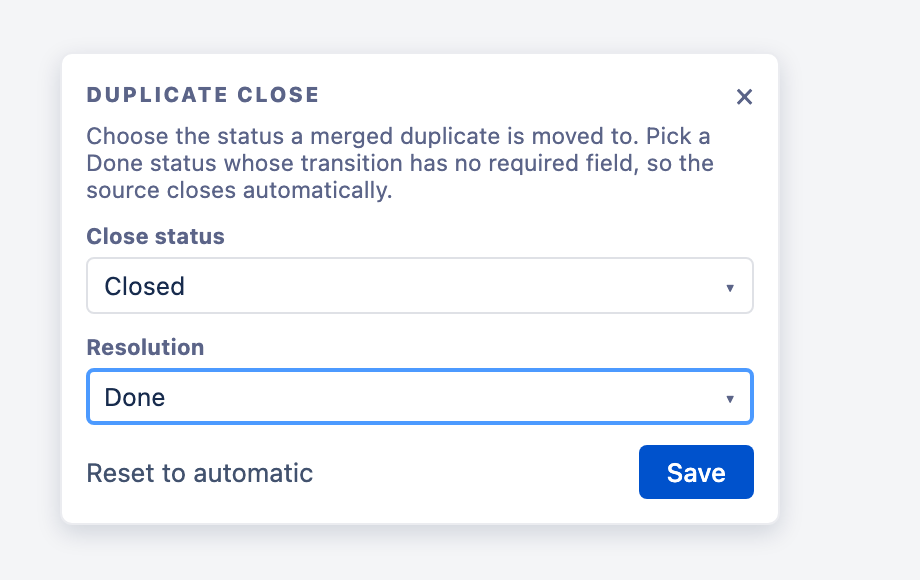
The app then transitions duplicates straight to that status instead of guessing — so you keep your required fields for real incidents while merges close cleanly. Leave the setting on Automatic to keep the default behaviour. Only project administrators can change it; everyone else sees it read-only.
Alternatively, if you'd rather not add a setting, you can add a transition to a Done status with no validator to the workflow — the automatic mode will use it.
Best practices
- Always review the preview before confirming the merge.
- Test on a non-production project if you're new to the app.
- For Jira Service Management projects, enable comment syncing to ensure clients remain notified.
Support & feedback
Need help, want to request a feature or report a bug? Visit our Support page.